

Meta now charges for every message your business sends on WhatsApp, replies included. Asking a customer for their name, address, the day that suits them and what they need, one question at a time, usually costs about 5 paid messages, and an afternoon of someone on your team chasing answers.
A WhatsApp Form asks for all of it at once. You send one message with a button, your customer taps it and fills in a short form without leaving WhatsApp, and the answers arrive together. That is about 2 paid messages instead of 5: the form and your reply. What your customer sends you is free.
For example, 100 bookings a month asked question by question are about 500 paid messages. With a form, about 200.
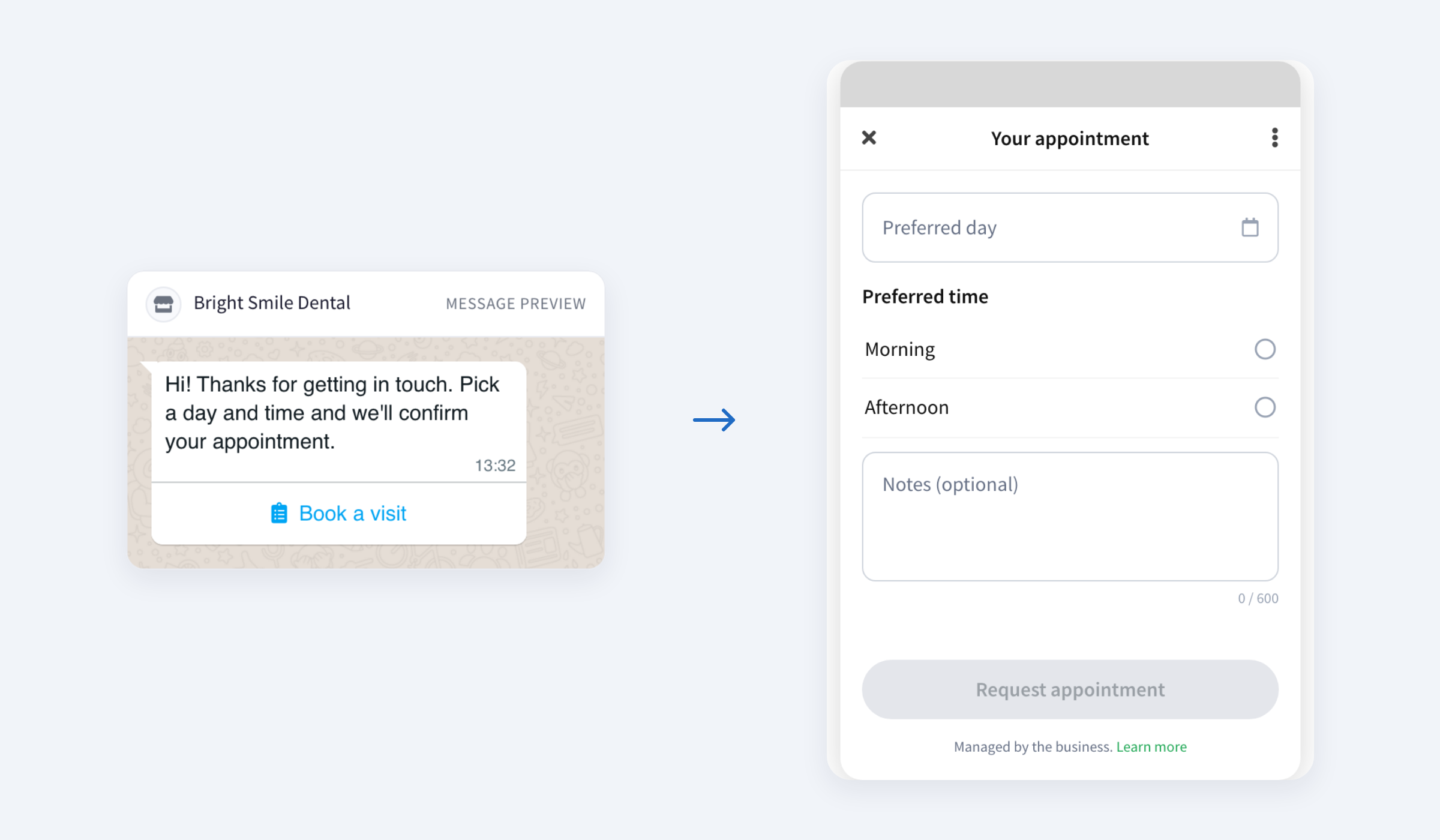
What a form can ask
- Short or long text: a name, an address, what the problem is.
- An email, a phone number or a number.
- One option or several from a list.
- A date.
- A box to tick to accept your terms.
A form cannot ask for photos or files, and it does not see your calendar: your customer picks the day and time they prefer, and you confirm it. If they ask for a photo or a slot you do not have free, it takes one more message in the chat.
Before you start
- An official WhatsApp number. Forms work on numbers connected to WhatsApp's official platform (the WhatsApp Business API), not on numbers connected by scanning a QR code. How to connect one.
- Your business verified by Meta. Meta only lets verified businesses send forms. You do not need to check this yourself: if your business is not verified, the forms page shows a yellow notice with a link to do it in your company's Meta account, Meta Business Manager.
- The owner or an admin creates the forms. If you opened the account, you are the owner. Your agents can send them.
1. Create your form
- In your dashboard, go into your WhatsApp number and click WhatsApp Forms.
- Click Create from a ready form.
- Pick the one closest to what you need: Capture leads, Book an appointment, Satisfaction survey, Take an order, Request a quote, Event registration, Support request or Customer details. Or start from a Blank form.
- Choose the language of the form and give it a name. The phone on the right shows exactly what your customer will see.
- Click Create form.
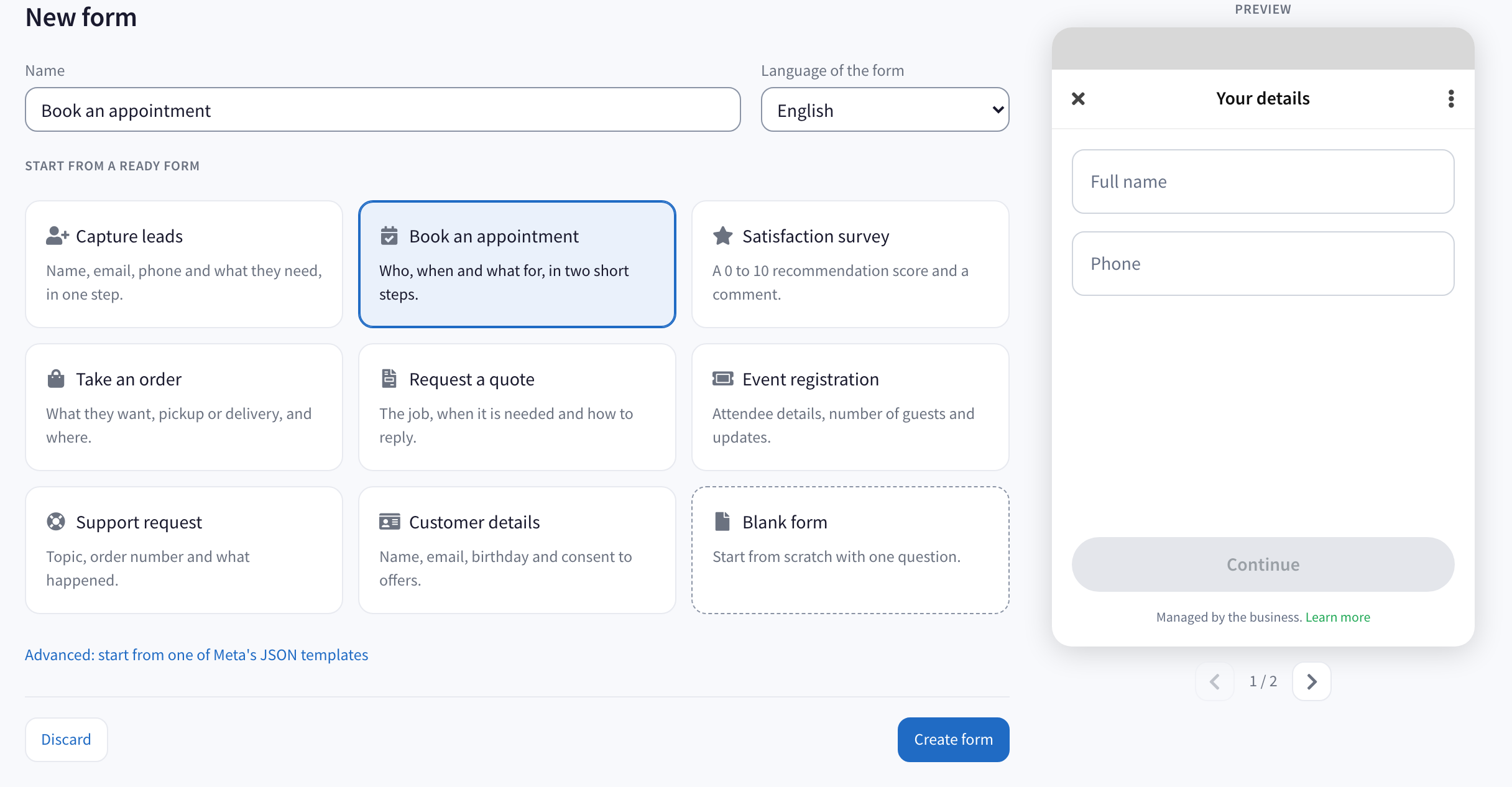
Then make it yours. Click a question to change its text, make it required or not, or edit the options of a list. Add questions with the button under them, and split a long form into steps: each step is one screen your customer goes through. Drag a question to move it. The phone updates as you type. Click Save changes when you are done.
2. Publish it
Click Publish. A published form is ready to send.
Once a form is published, Meta does not let anyone change it. To change it, click Duplicate: you get a copy you can edit and publish. When the new one is live, click Retire on the old one so it can no longer be sent.
3. Send it
- When a customer writes to you. Open the chat, click the attachment button and choose Send form. Pick the form and write the message that goes above its button. You can do this until 24 hours have passed since the customer's last message.
- When they wrote more than a day ago, or you write first. WhatsApp only lets you do this with a template: a message Meta approves before you send it. Create a template with a WhatsApp Form button that opens your form. Meta usually approves it within 24 hours. Then send it from a chat or to many customers at once in a campaign.
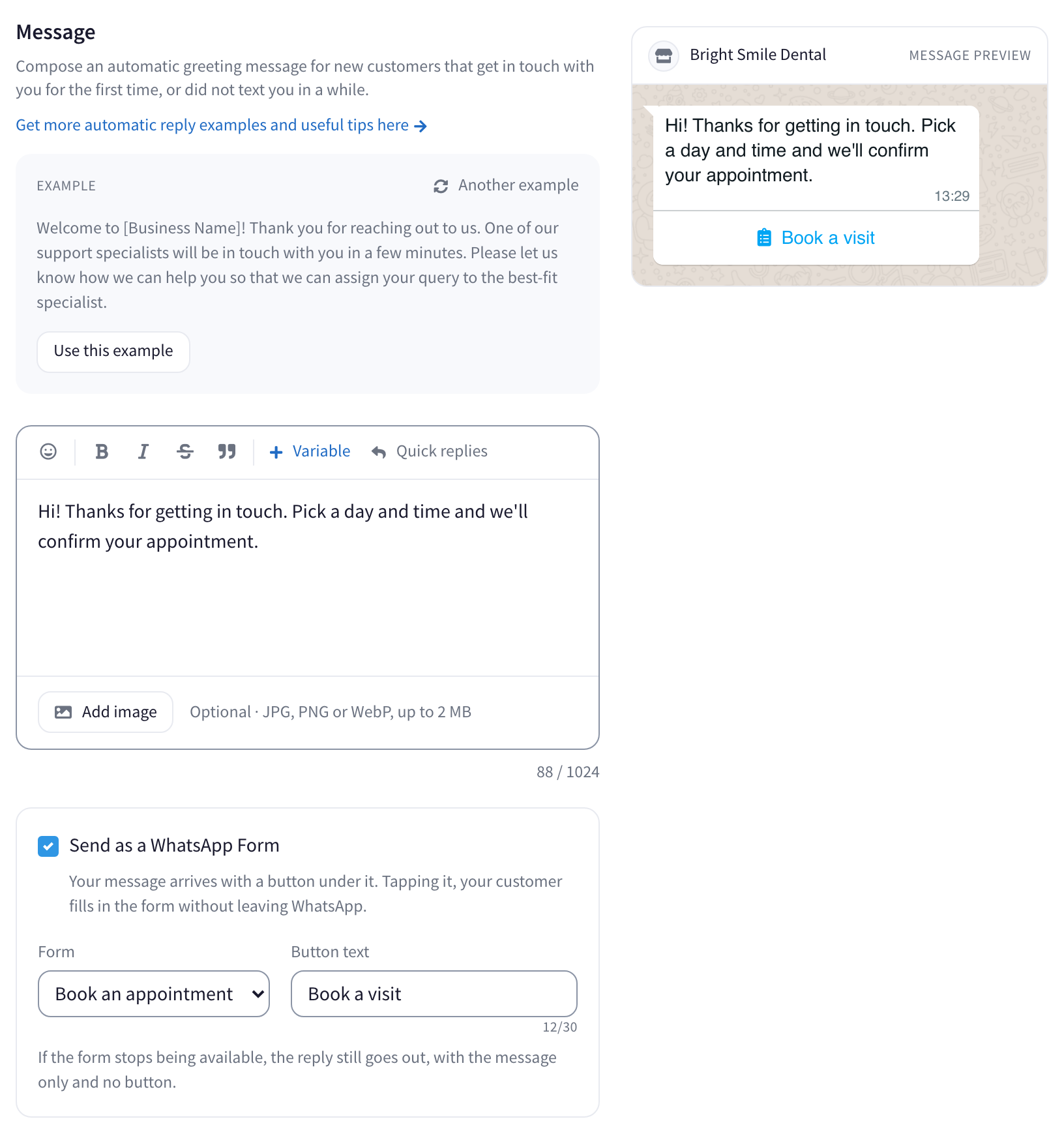
- Automatically. In Automatic replies, open the welcome, away, busy or follow-up reply and tick Send as a WhatsApp Form. The welcome reply goes out at most once per customer in the period you choose, from once a day to once every 14 days, so your regular customers do not get the form every time they text. If the form stops being available, the reply still goes out, as plain text.
4. Read the answers
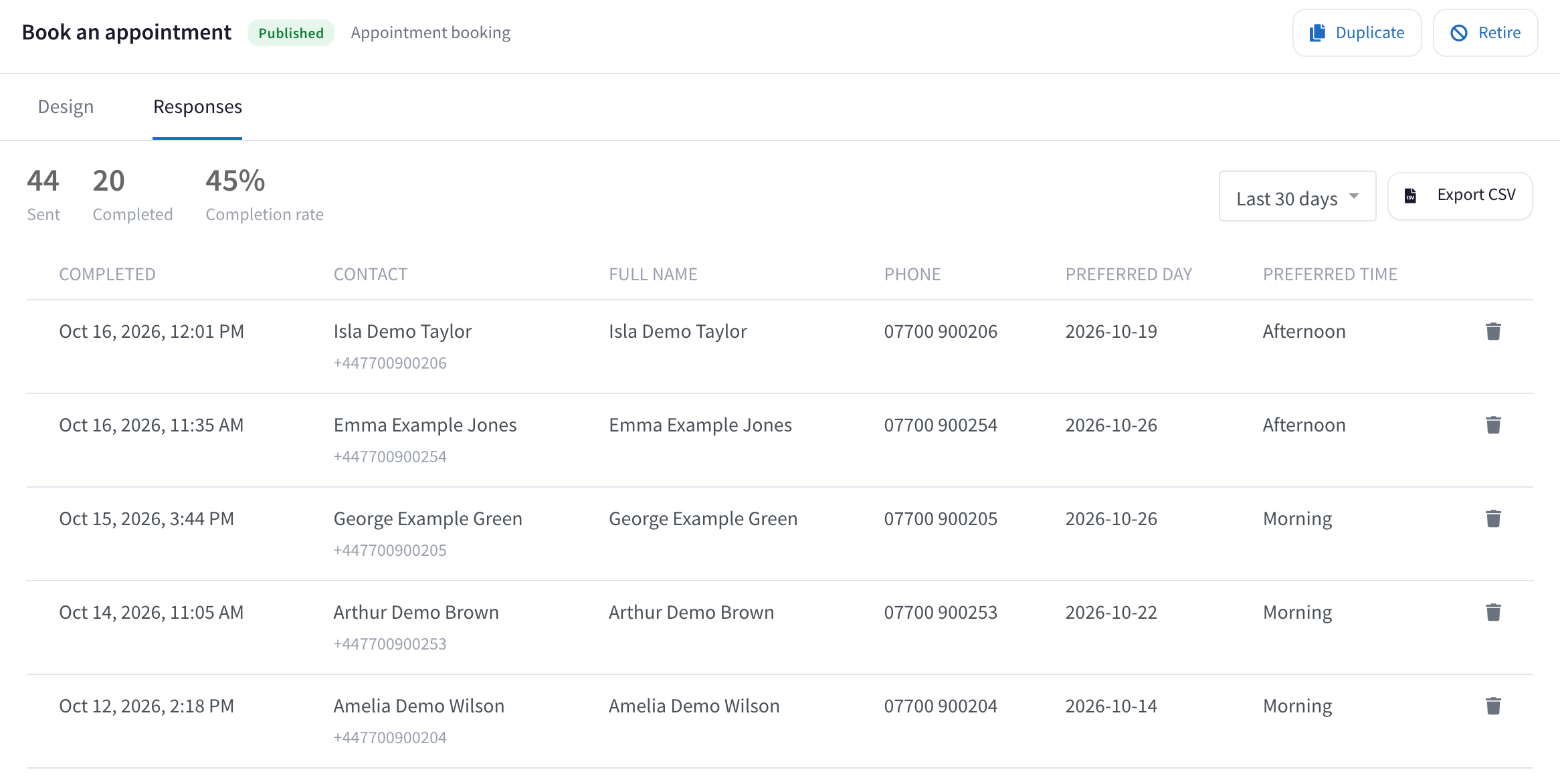
The answers arrive in the chat like any other message, so your team sees them in the inbox. They are also saved:
- In the form's Responses tab. One row per customer, with the date and each answer. Choose the period (last 7, 30 or 90 days, or all time) and click Export CSV to open them in Excel. At the top you see how many forms were sent, how many were completed and the share completed.
- In the contact. The answers are added to your customer's contact details.
- In the campaign. A campaign that sent a form shows how many recipients completed it, and View responses opens only their answers.
Questions
How much does a form cost? WaliChat does not charge anything extra for forms. Meta charges the message that carries the form like any other message your business sends, and your reply too. What each message costs depends on the country: see Meta's prices. Meta bills them to you directly. If you write first with a template, Meta gives the template a category, and it can be marketing, which costs more. When the customer writes first, you do not need a template.
My customer cannot open the form. Forms only open in the WhatsApp app on the phone, not in WhatsApp Web or on a computer. Ask your customer to open the chat on their phone.
I cannot find WhatsApp Forms on my number. Forms are only on official numbers. On an official number whose business Meta has not verified yet, the forms page tells you, with the link to verify it.
My automatic reply says its form is no longer published. You retired that form, usually after publishing a new version. Until you choose another form in the reply, it goes out with the message only, without the button.
Where are the answers kept? In your WaliChat account, for as long as you have the number. They are deleted if you delete the number or the contact. Ask only for the details you need.
Is this the same as WhatsApp Flows? Yes. WhatsApp Flows is Meta's name for these forms.